.jpg&w=64&q=75)
.jpg)
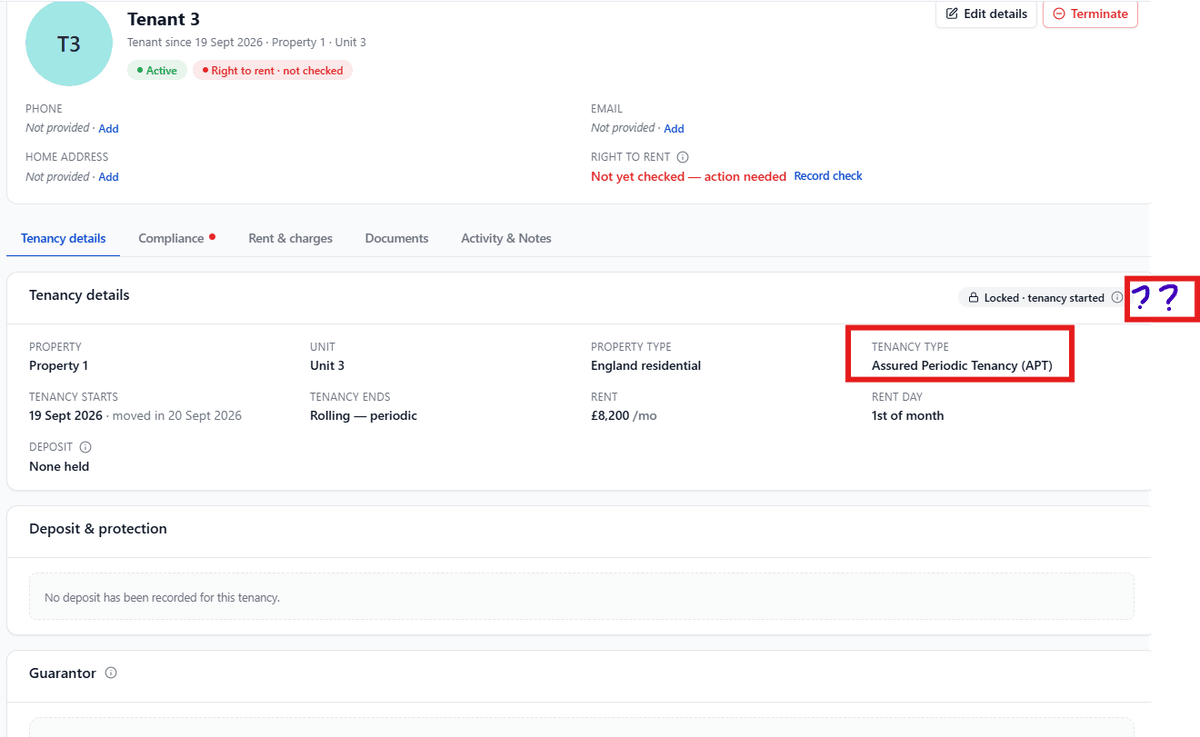
The Tenancy details tab shows the property, unit, property type, tenancy type, dates, rent and deposit for this tenancy, plus a deposit panel and the Guarantor panel.
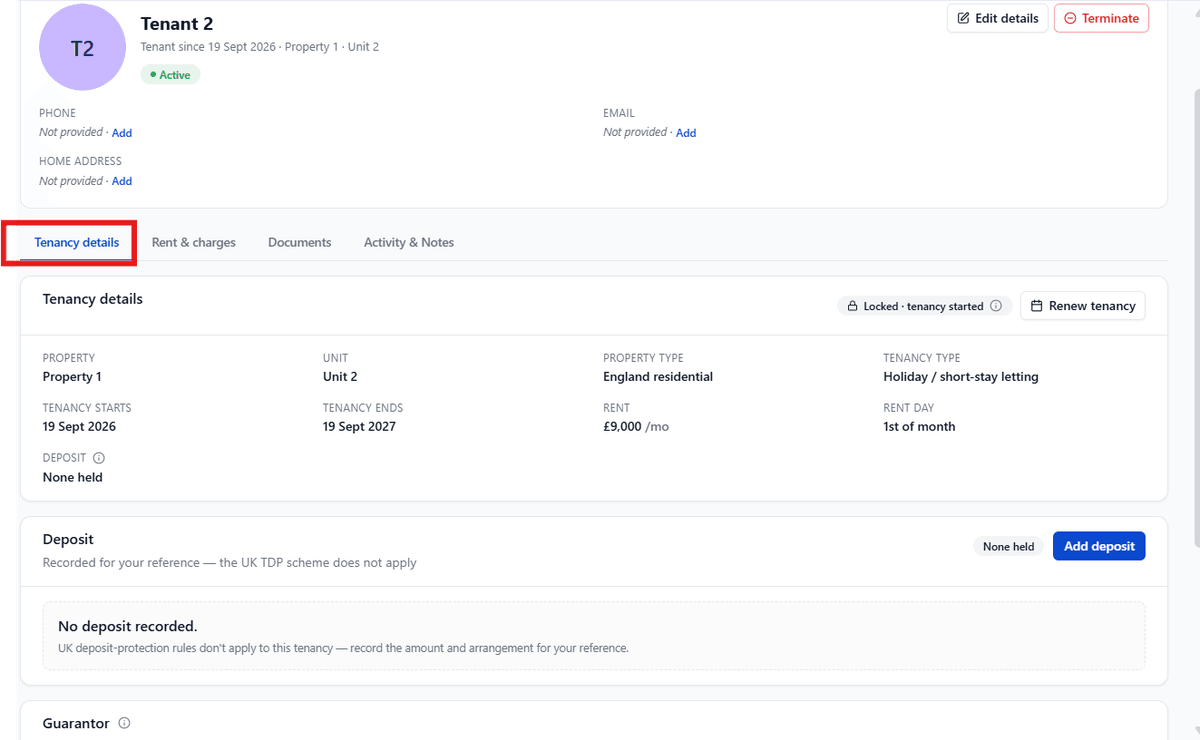
What's on This Tab
A summary panel with: Property, Unit, Property type, Tenancy type, Tenancy starts, Tenancy ends, Rent, Rent day, and Deposit.
Tenancy ends shows an actual date for a fixed-term letting (for example, a Holiday / short-stay letting), or
Rolling/periodic for an Assured Periodic Tenancy, which has no end date.
Once the tenancy is locked, a Locked tenancy started tag appears in the top right of this panel.
On a fixed-term letting, a Renew tenancy button appears next to it once renewal applies — see Renewing a tenancy.
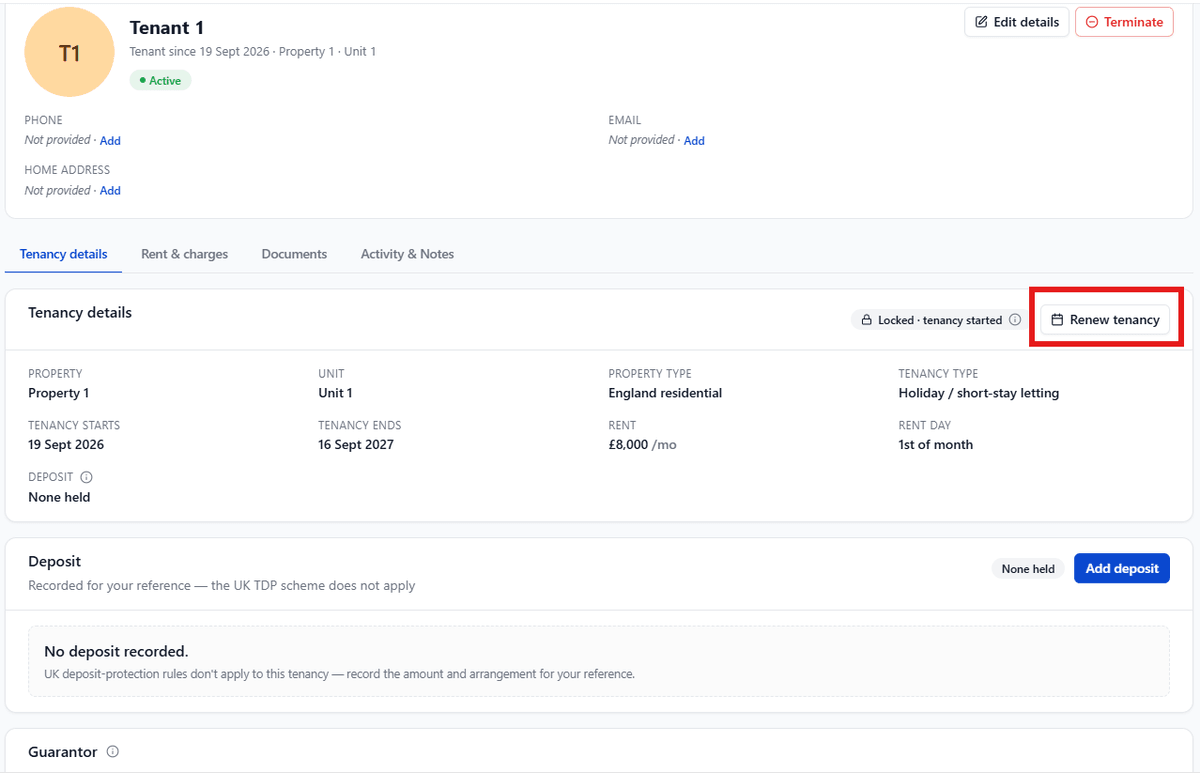
An Assured Periodic Tenancy never needs renewing, so this button doesn't appear for it.
Below that, there is a deposit panel. See Deposits & protection.
The Guarantor panel — See Guarantors.
What You Can Still Edit, and When
Every tenancy field is either contractual (a term of the agreement) or administrative (a practical detail with no legal effect).
Contractual fields: rent, deposit, start/end date, tenants and guarantors, property and unit, occupancy basis are only directly editable before the tenancy starts and before any agreement is signed, whichever happens first. Once that happens, the tenancy is locked, shown by the padlock tag described above.
Administrative fields: tenant and guarantor contact details, notes, documents, Right to Rent evidence stay editable at any time, locked or not.
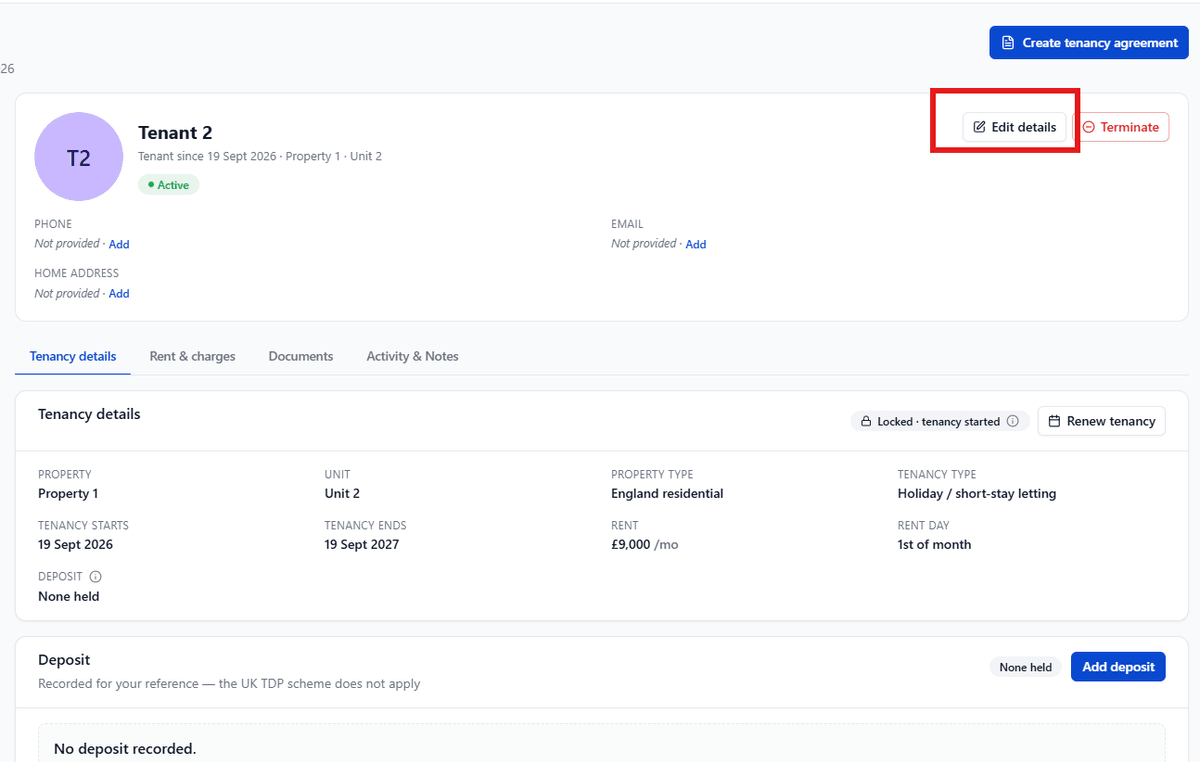
Select Edit tenant (from the tenant's name or photo) to change tenant contact details at any time, regardless of the lock.