.jpg&w=64&q=75)
.jpg)

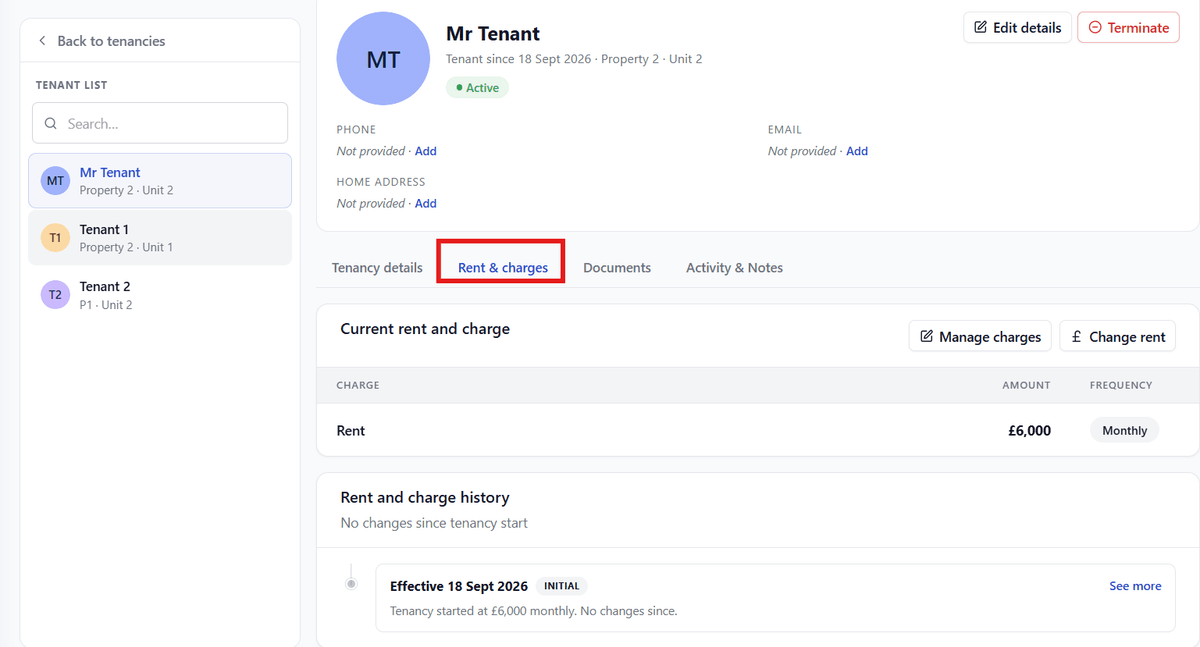
The Rent & charges tab shows the current rent and any other charges on the tenancy (for example, a parking fee), and a full history of every change made.
What's on this Tab
A table of every charge currently in force, with its amount and how often it's charged
A Rent and charge history panel listing every change ever made, each with its effective date
A Manage charges button
A Change rent button
Managing Charges
Use Manage charges for anything other than the rent itself for example, a parking fee. This works the same way whatever the tenancy type.
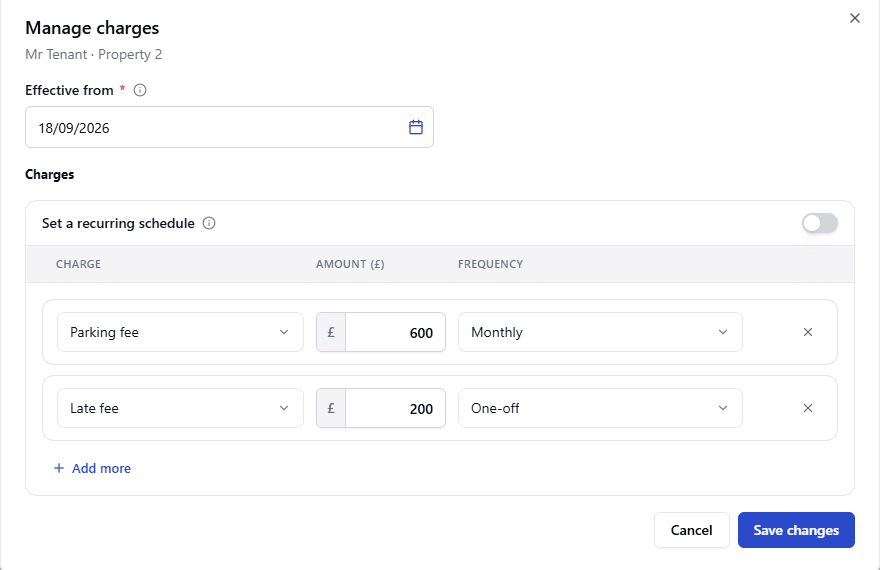
Select Manage charges.
Set the Effective From date, the date the change takes effect.
For each charge, choose the charge type, amount and frequency. Select + Add more for another charge.
Select Save changes.
Changing the Rent
Select Change rent to change the rent itself. This button is available on every tenancy type, but what happens next depends on whether the tenancy is an Assured Periodic Tenancy (APT) or not.
On Other Tenancy Types
Rent on these tenancies is simply changed by agreement between you and your tenant. Selecting Change rent opens a Set the new rent window:
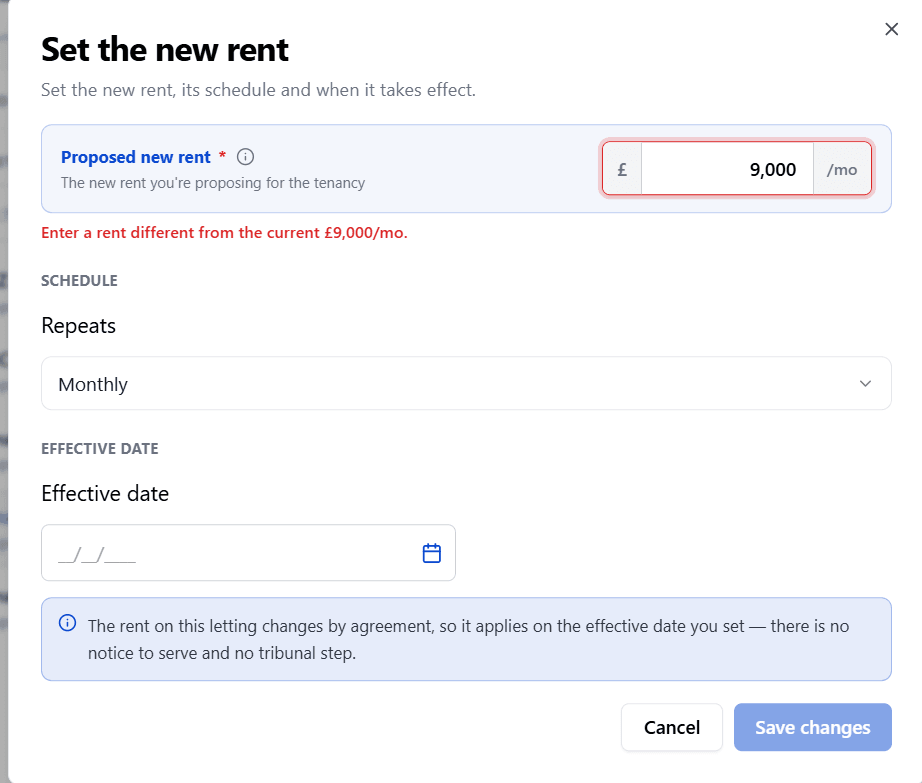
Enter the Proposed new rent; it must be different from the current rent.
Set how it repeats.
Enter the Effective date; the date it takes effect.
Select Save changes.
RentalBux confirms there's no notice to serve and no tribunal step — the new rent simply applies from the effective date you set.
On an Assured Periodic Tenancy
The law requires an APT rent increase to be served as a formal notice (called a Section 13 notice), and it can only take effect once certain timing rules are met:
The rent can only rise once every 52 weeks, counted from when the last increase took effect (or from the tenancy start, if there hasn't been one yet).
The earliest it can rise is 12 months after the tenancy started.
You must give at least two months' notice before the new rent takes effect, and the new rent must start on the first day of a rental period.
To Change the Rent (APT)
Select Change rent. This opens Serve notice (Step 1 of 2), shown as "Draft · awaiting service" until it's sent.
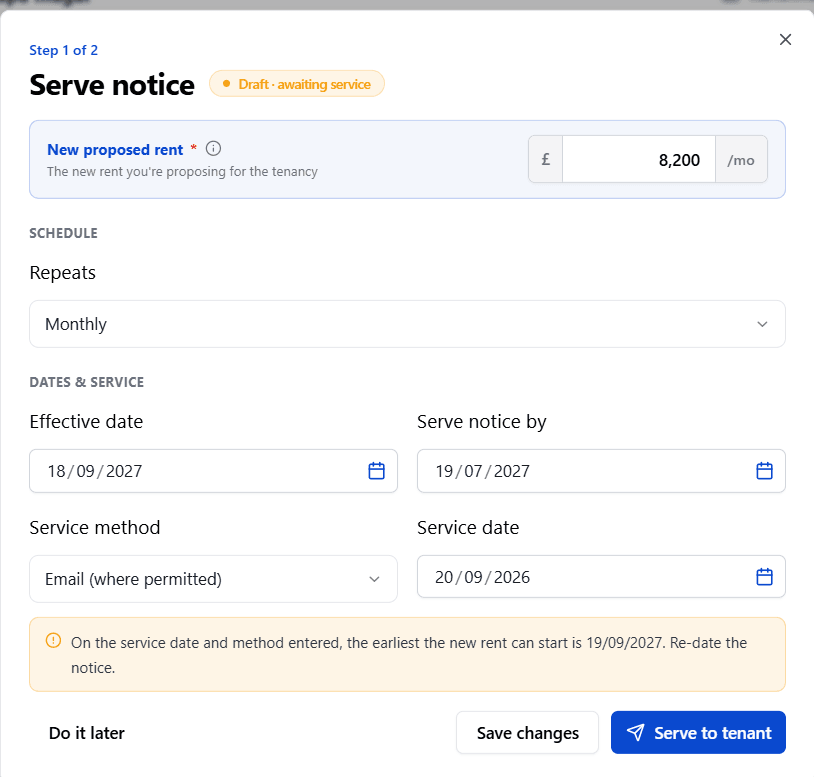
Enter the New proposed rent and how it repeats.
Under Dates & service, enter the Effective date. RentalBux checks it against the earliest date allowed and tells you if you need to re-date the notice.
Choose the Service method (for example, email) and the Service date.
Select Save changes to keep it as a draft and come back to it later, Do it later to leave it for now, or Serve to tenant to move on to Step 2.
Step 2: Review email. Check the From, To and Subject and the message body, which is pre-filled with the current rent, proposed new rent, and the date it takes effect.
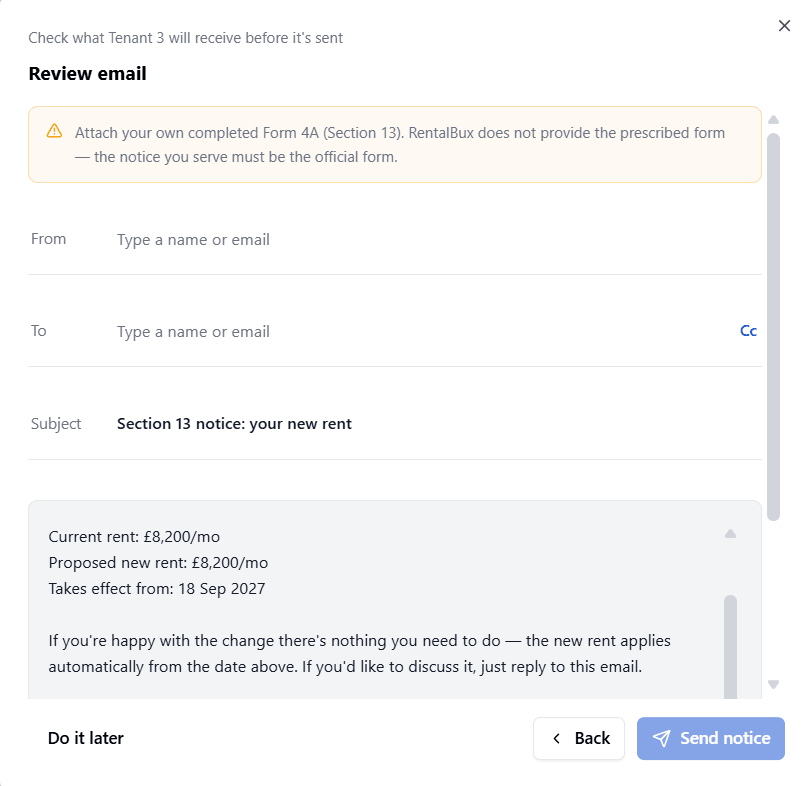
Select Attach document to attach the completed Form 4A, this is required before sending. Select Send notice to serve it, Back to return to Step 1, or Do it later to leave it for now.
Why the Rent and Charge History Never Changes
RentalBux never edits or deletes a past rent or charge entry. A change always adds a new, dated entry, and the previous one is kept and marked as no longer in force. This means you can always look back and see exactly what the rent and charges were on any date useful for your own records and for an accountant.
If a rent increase raises the deposit cap, you'll be asked to either top up the deposit to the new cap or keep the deposit as it is (this is allowed — the cap is a maximum, not a requirement). You must deal with this deposit step before you can view the new agreement. See Deposits & protection