.jpg&w=64&q=75)
.jpg)
Layout
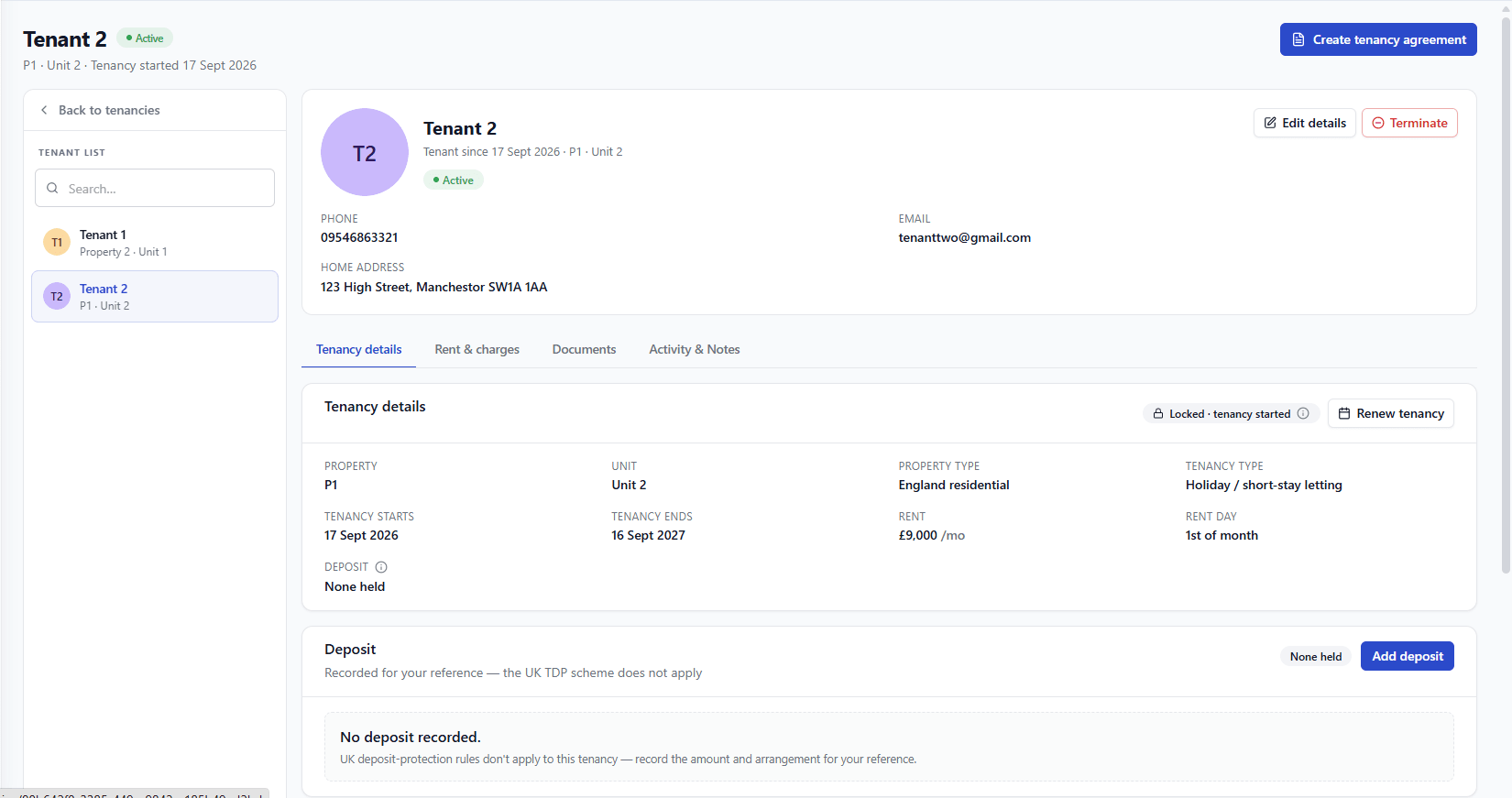
Tenant list (left): every tenant you have, so you can switch between tenancies without going back to the Tenancies page. Use the search box above the list to find one quickly.
Header card (top right): the tenant's name, status (Active or Terminated), and, for a APT case, their Right to Rent status. It also shows contact details and buttons for Edit details, Agreement, and Terminate (or Renew tenancy, where that applies).
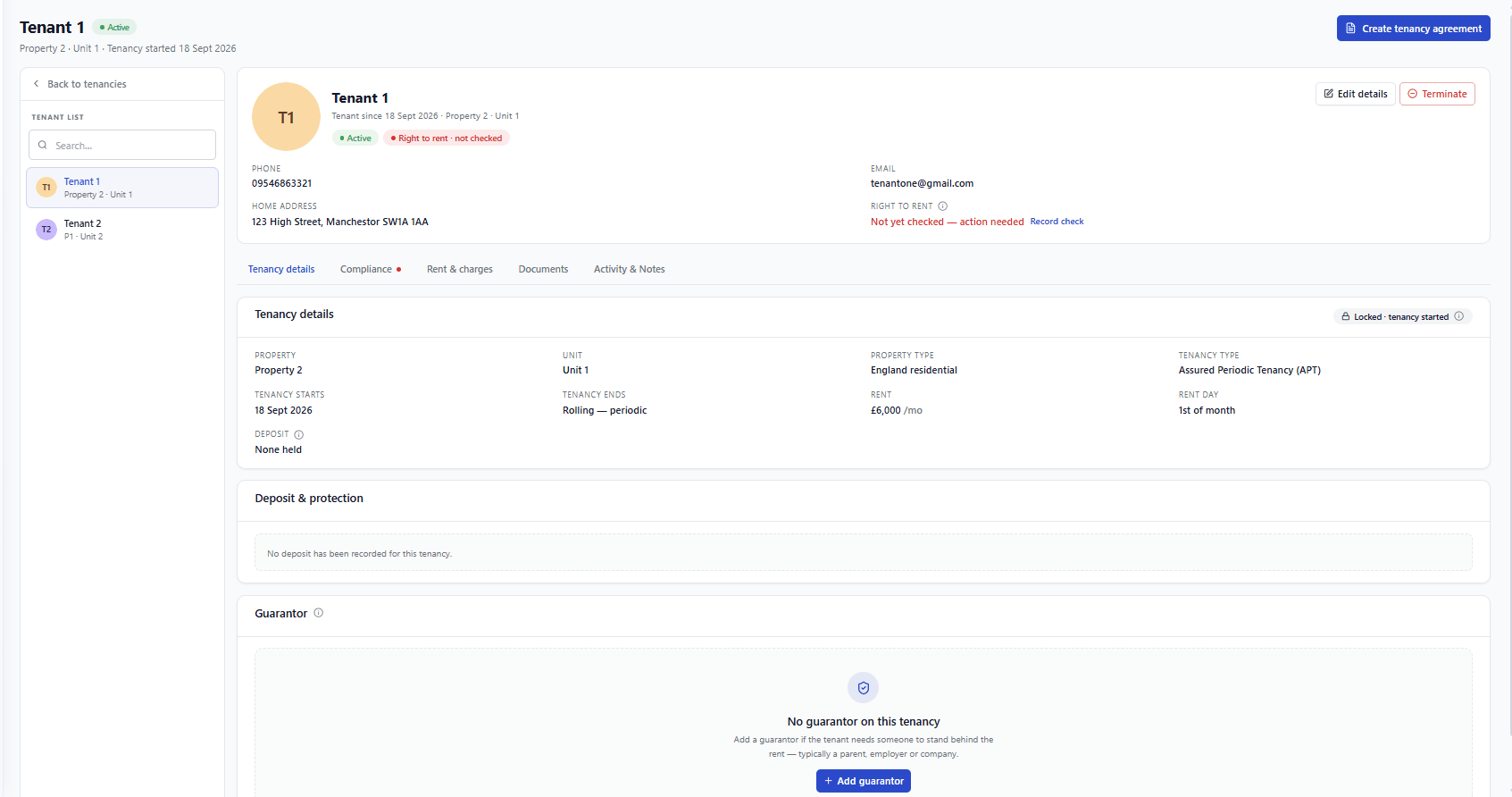
Tabs (below the header): the sections of the tenancy record.
The tabs
Which tabs you see depends on the tenancy type:
Tenancy type | Tabs shown |
|---|---|
Assured Periodic Tenancy | Tenancy details · Compliance · Rent & charges · Documents · Activity & Notes |
Commercial or other fixed-term tenancy | Tenancy details · Rent & charges · Documents · Activity & Notes |
A red dot on a tab (for example, "Compliance •") means something in that tab needs your attention.
If a tab or button you'd expect doesn't appear, it's usually because it genuinely doesn't apply to this tenancy's type not a fault. For example, only Assured Periodic Tenancies get a Compliance tab.