The Property Module is where your physical rental assets live in RentalBux. Every property you add becomes the anchor for everything else — your tenancies, your income, your expenses, your compliance documents, and your MTD figures are all linked to specific properties. This guide covers how to add properties, configure them correctly, and get the most out of the module.
The five tabs every property has
Tab | What you manage here |
|---|---|
Property Details | Name, full address, property type (detached, semi-detached, etc), area |
Unit Details | Individual lettable units within the property. Most single buy-to-lets have one unit. HMOs typically have multiple. |
Ownership Details | Legal owners and their percentage shares. For jointly owned properties, add all co-owners here. |
Mortgage Details | Lender name, loan amount, interest rate, registration date. Required for accurate Section 24 calculations. |
Compliance | Upload and track compliance documents (EPC, Gas Safety, EICR, etc.) linked to this specific property. |
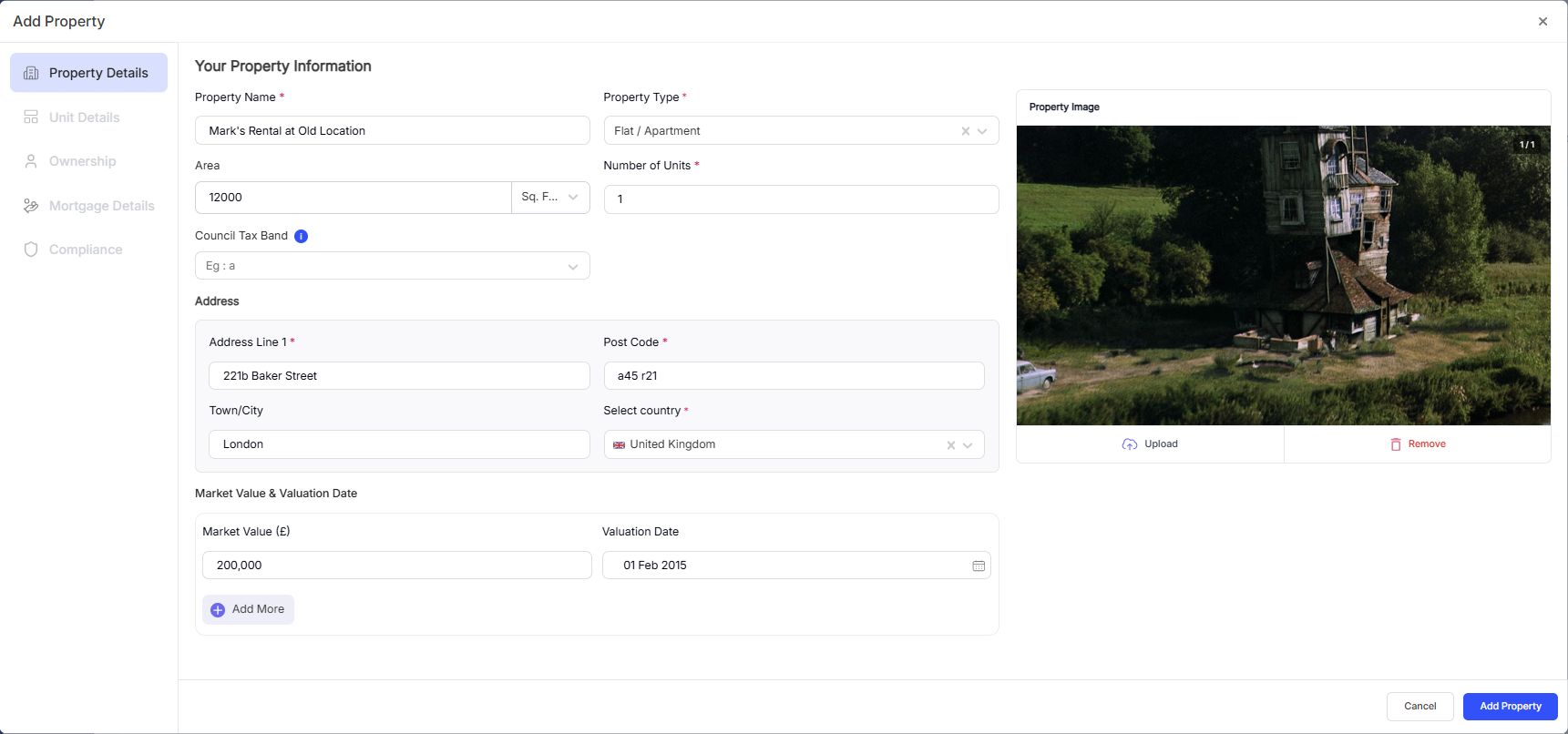
Adding your first property — step by step
Quick Tip: The property name you choose in RentalBux is for your own reference only — it doesn't get sent to HMRC. Use a name that makes it easy to identify in reports, like the street address or a nickname like 'Sheffield flat'.
Managing tenancies from the Property Module
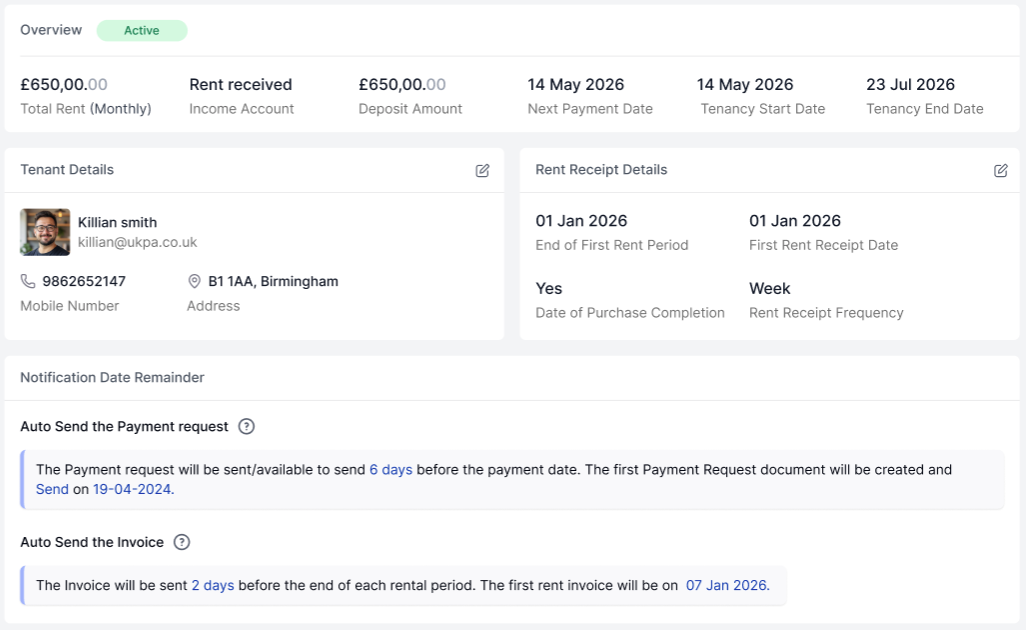
The Property Module has a Tenancies sub-section that shows all current and past tenancy records linked to each property. From here you can:
See which units are currently occupied and which are vacant
View lease start and end dates at a glance
Access each tenancy record directly
See payment status for the current rent period
Tenancy records themselves are created and managed in full detail from the Tenancy Management section. The view in the Property Module is a summary overview.
Adding multiple properties
Repeat the Add New Property process for each property in your portfolio. There's limit to the number of properties based on subscription level. On the free plan, you can add one property.
Once you have multiple properties, your Portfolio view gives you a consolidated overview of all of them — combined income, total expenses, and your overall rental profit across the portfolio for any date range.
Related Guides: |