


The Income Statement — sometimes called a Profit and Loss report or P&L — is the most important financial report most landlords will ever look at. It tells you, in plain numbers, whether your rental property is making or losing money over any period you choose. Here's how to read it and get the most from it.
What the Income Statement shows
The Income Statement shows your income, your expenses, and the difference between them (your net profit or net loss) over a specific period. It's structured in layers:
Line | What it means |
|---|---|
Turnover / Gross Income | All rental income received in the period — before any deductions |
Cost of Sales | Direct costs of generating that income (if applicable for your property type) |
Gross Profit | Income minus cost of sales |
Operating Expenses | All allowable property expenses — repairs, insurance, agent fees, professional fees, mortgage interest (post Section 24 adjustment), etc. |
Operating Profit | Gross profit minus operating expenses |
Other Income / Expenses | Any items that don't fit the standard categories |
Net Profit / (Net Loss) | The final figure — what you've made (or lost) after everything |
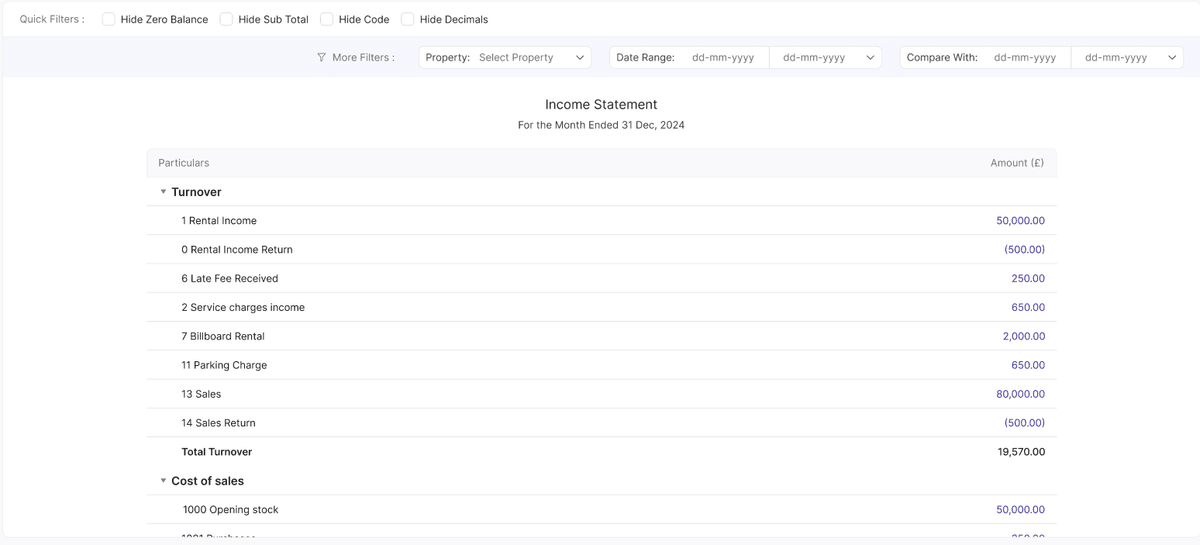
How to generate an Income Statement in RentalBux
Reading your Income Statement — What to look for
A few things worth checking every time you run this report:
Is your gross income tracking where you expect it? If a property has been vacant, you'll see months with no income — worth noting for your records
Are your expenses in the right categories? Compare the expense lines to what you know you've spent this year
Is your net profit positive? If it's negative (a loss), this isn't necessarily bad — a major repair year can tip a profitable property into a temporary loss
How the Income Statement connects to your MTD submission
Your quarterly MTD updates send a summary of your income and expenses to HMRC — which is essentially a quarterly snapshot of your Income Statement. When you file a quarterly update in RentalBux, the figures come directly from your reconciled transactions. Running the Income Statement before you submit is a good way to sense-check the figures before they go to HMRC.
Quick Tip: If your Income Statement shows a figure that looks wrong, go to Accounting > Ledger and filter by the account in question to see every transaction that's contributed to that line. Nine times out of ten, a single miscategorised entry explains the discrepancy.
Related Guides: |