.jpg&w=64&q=75)
.jpg)

Rules never post silently. When your active rules match new transactions, RentalBux shows you what it proposes and waits. Confirming is one click for the whole batch, and anything wrong can be corrected in the same screen.
Steps
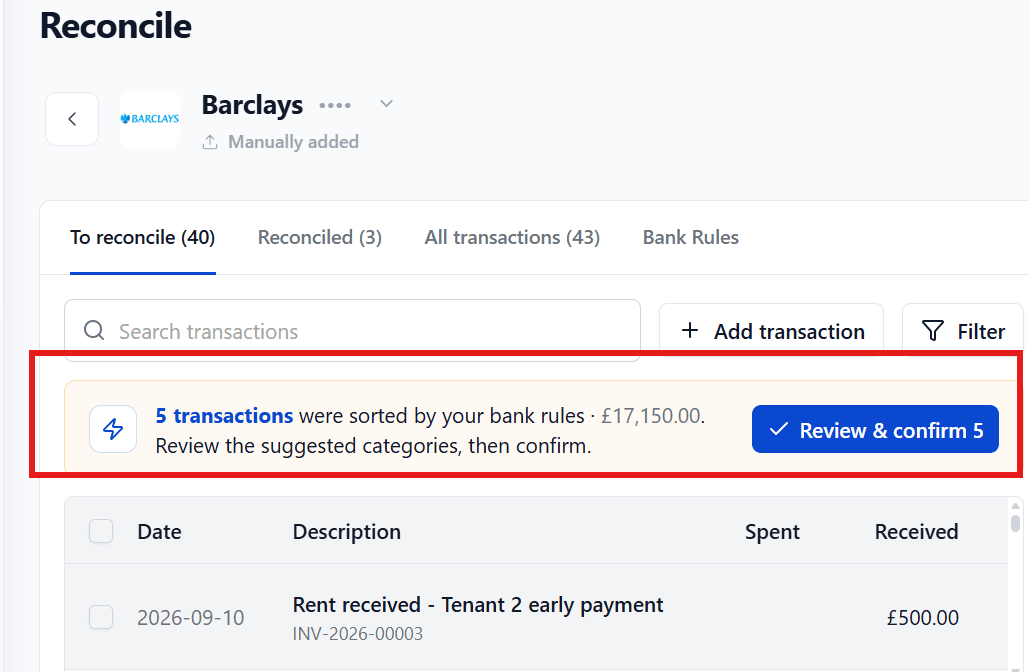
Open the account. If rules matched anything new, Matched by bank rules appears, showing how many transactions were sorted and their total. Click Review & confirm.
Each row shows the bank transaction on the left and what the rule proposes on the right.
Fix anything wrong: the category, the property, or the invoice or bill it matched to.
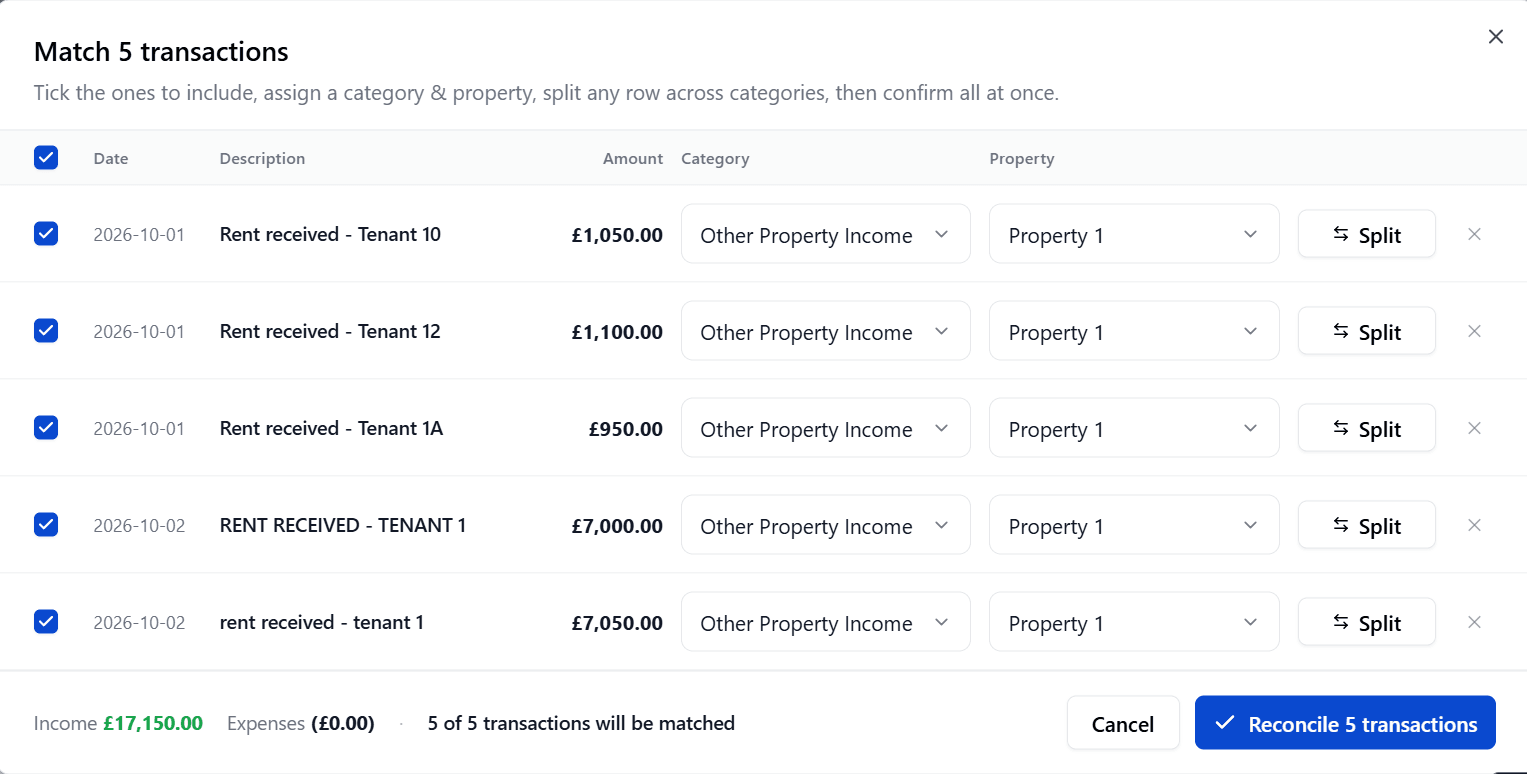
Clear any warning icons. They flag rows that look like duplicates, and you need to confirm those are separate transactions before you can carry on.
Untick any row you would rather handle yourself. It stays in the queue.
Click Confirm. All the selected rows post together, or none of them do.
What To Actually Check
The property. The most common rule error is the right category on the wrong property.
Amounts on split rows. Agent commission changes; the split should reflect what arrived.
New payees. A rule matching a name for the first time deserves a second look.
Anything unusually large. Rules are pattern-matchers; they have no sense of size.
Note: Correcting a row here fixes that transaction only. If the rule keeps getting it wrong, edit the rule.
If You Would Rather Not Confirm In Bulk
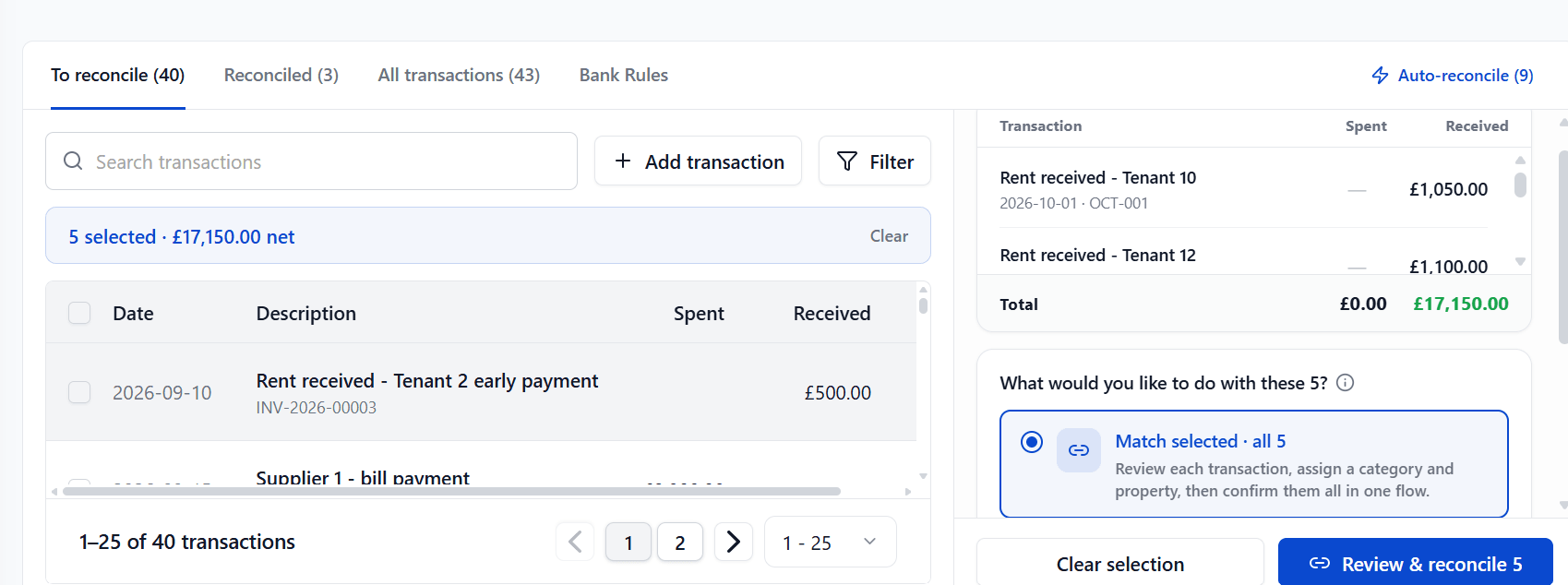
Deselect all clears the batch, and the transactions stay in To reconcile for you to work through one at a time. Nothing is lost by ignoring the screen it will offer them again.
After Confirming
The rows move to Reconciled and, where the rule matched an invoice or bill, the record closes too. Any of them can be reverted individually if you change your mind.
Why There Is A Confirmation Step At All
Because a rule is a pattern, and a pattern has no judgement. Automation that posts silently is fast right up to the month it is wrong, and then it is a hunt through a reconciled period. One glance at a list is cheaper than that.
Eleven transactions matched. Ten are the usual monthly payments. The eleventh is a £2,900.00 payment to the plumbing firm the rule normally sees at £200.00, a bathroom replacement, not a repair. Corrected in the review screen, it goes to the right category. Confirmed blind, it would have been claimed as a repair.
What To Fix Here, And What To Fix In The Rule
A one-off oddity; fix the row. The same correction three months running; fix the rule. The review screen is not the place to keep patching the same mistake.
Ignoring The Screen
Nothing breaks if you close it. The transactions stay in To reconcile and the matches are offered again next time. It is a shortcut, not a gate.