Before you can reconcile your accounts in RentalBux, you need to get your bank data in. There are two ways to do this: a manual CSV upload (works with any UK bank) or auto-import with the bank-link feature. This guide covers both.

Option 1: CSV or XLS upload (works with any bank)
Step 1: Download your statement from online banking
Log in to your online banking and download a statement for the period you want to reconcile. Most UK banks let you export as CSV or XLS format. The process is slightly different for each bank, but you're usually looking for a 'Download', 'Export', or 'Save' option on the statements or transactions screen.
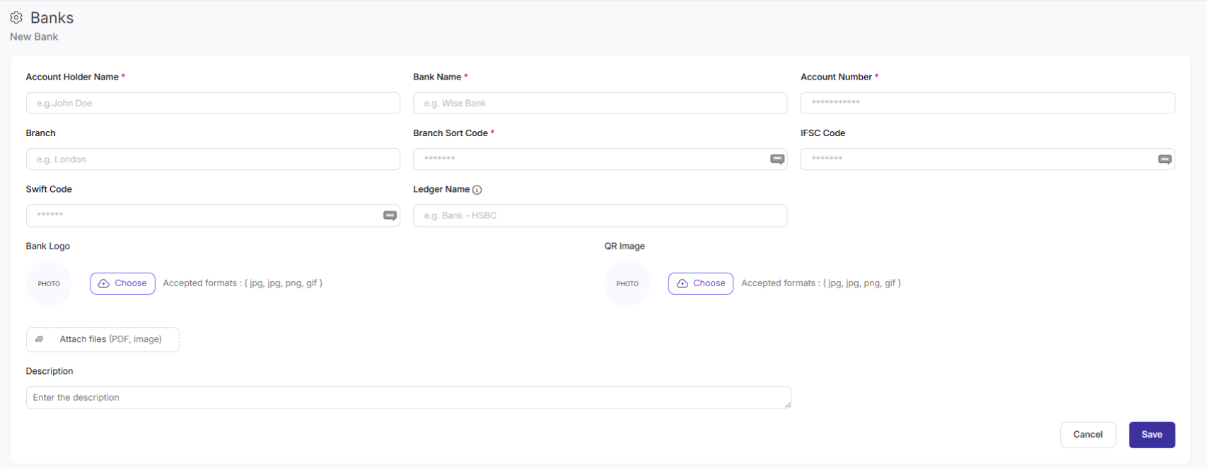
Step 2: Manually add your bank
Select enter bank manually from the Bank Account section.
Enter Account holder name, bank name, account number and other required details.
Click on Save.
Step 3: How to upload your statement
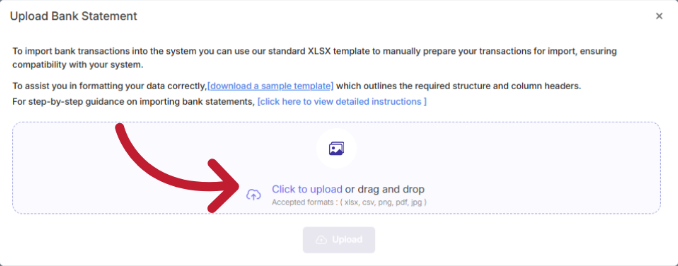
Go to Bank > select Import Bank Statement.
Click Upload File and select your prepared CSV or Excel file.
RentalBux will preview the transactions and ask you to confirm the column mapping (which column is the date, which is the amount, etc.).
Click Confirm Import. Your transactions appear in the reconciliation queue.

Option 2: Auto-import from a Bank Feed
This is the fastest and most hands-off option. Once connected, RentalBux automatically pulls in new transactions when you sync the bank feed. You just review and confirm the categorisations— no manual downloads, no spreadsheet juggling.
How to set it up
Go to Bank > Bank Accounts in the sidebar menu.
Click Connect Bank Account.
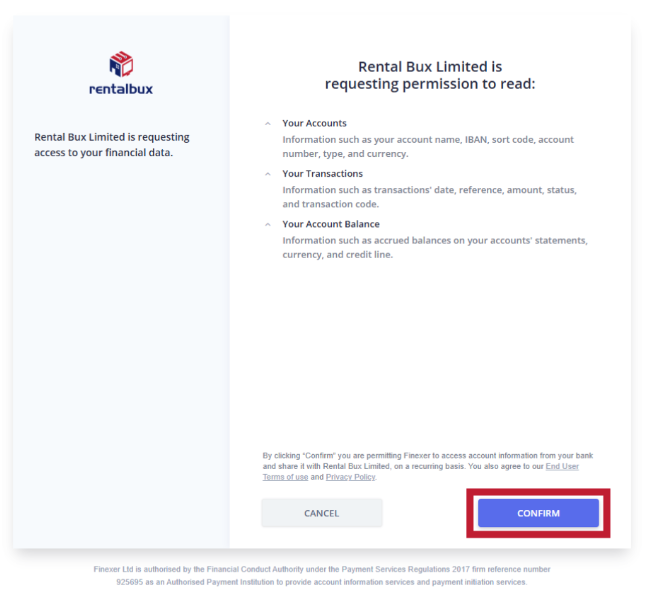
You'll be redirected to your bank's own secure login page.
Grant read-only access to RentalBux.
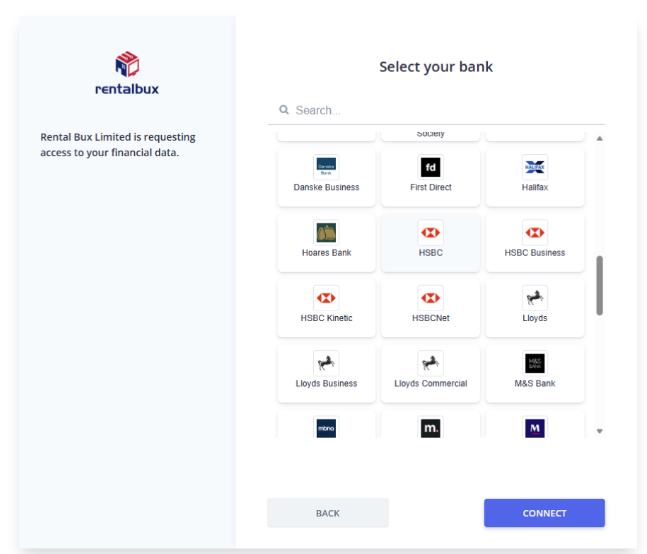
Select from the list of Supported Banks.
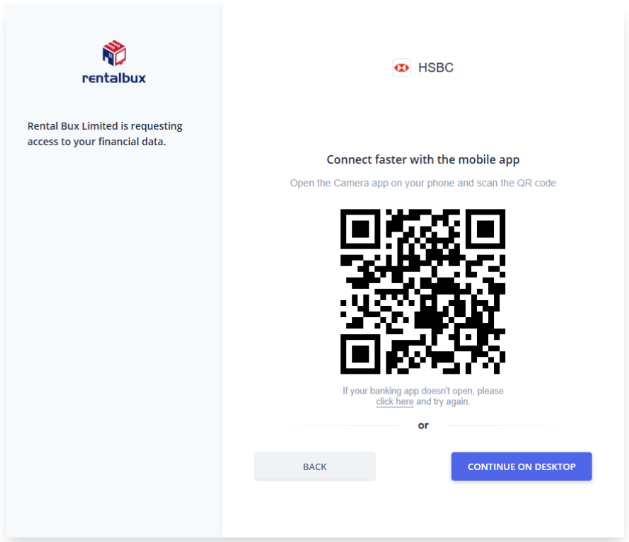
Scan shown QR code with your banking app or continue logging in with your browser.
You'll be redirected back to RentalBux. Your bank will appear as Connected in your bank settings.
How frequently should you import?
At minimum, import statements once a month. If you receive rent on multiple dates or have a high volume of expenses, importing weekly keeps your reconciliation queue manageable and prevents you from ever facing three months of transactions at once.
After importing, what happens next
Regardless of whether you used automatic linking or manual upload, the process from here is the same. RentalBux will:
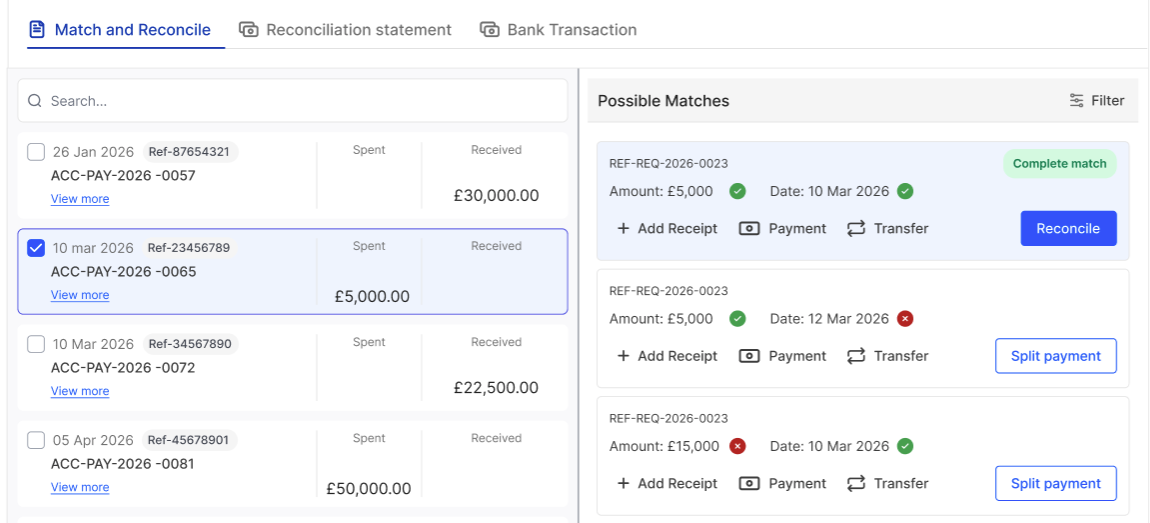
Analyse each transaction and suggest a category based on the description and your previous choices.
Show you a list of categorised transactions for review. Green items are confidently categorised.
Allow you to match each transaction to an existing invoice or bill, or create a new record from the transaction.
Update your running balance as you work through the queue.
Troubleshooting common issues
Issue | Likely cause | Fix |
|---|---|---|
File won't upload | Wrong format | Re-export from your bank as CSV or XLS |
Dates showing in wrong order | US date format (MM/DD/YYYY) in file | Re-map the date column in the preview step |
Amounts showing as negative | Bank exports outgoings as negative values | Toggle 'reverse debit sign' in column mapping |
Duplicate transactions appearing | Overlapping date ranges imported twice | Delete the import and re-import with a clean date range |
Related Guides: |